
Windows Guides
Fix Windows Not Activated Error – Top Working Solutions
Dec
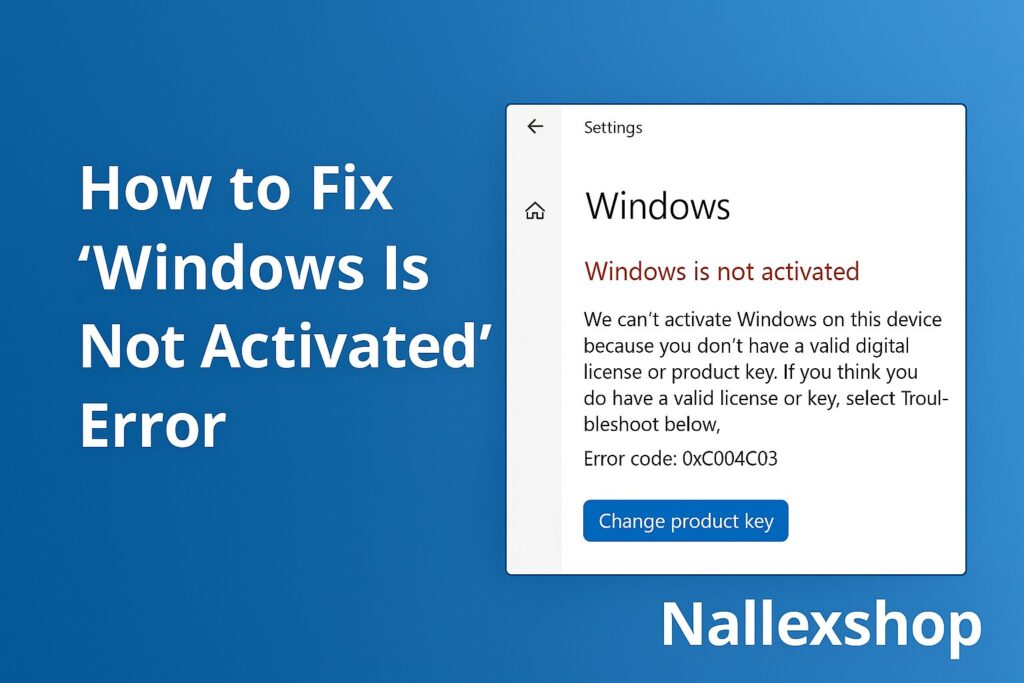
If you see the message “Windows is not activated” on your PC, it means your system has not verified its license correctly. This can cause activation warnings, limited personalization and other issues. The good news is that you can fix the Windows not activated error using several simple, proven methods for both Windows 10 and Windows 11.

1. Check if your Windows license is valid
Before you try to fix any activation issue, confirm that your license is genuine and valid. You can quickly check your activation status using a built-in Windows command.
- Right-click the Start button and choose Windows Terminal (Admin) or Command Prompt (Admin).
- Type the following command and press Enter:
slmgr /dli - A small window will appear showing your activation status and license channel.
If the result shows Retail or OEM, your license should activate normally. If it shows Volume or Unlicensed, activation may fail until the license is corrected.
For a full guide on verifying your license, you can read:
How to Check If Your Windows License Is Genuine.
2. Use the Activation Troubleshooter to fix Windows not activated error
Windows includes an Activation Troubleshooter that can automatically fix many common issues behind the Windows is not activated message.
- Open Settings.
- Go to:
- System → Activation (Windows 11)
- Update & Security → Activation (Windows 10)
- If you see a problem, click Troubleshoot.
- If prompted, choose “I changed hardware on this device recently” and sign in with your Microsoft account.
Microsoft documents the Activation Troubleshooter here:
Windows activation errors FAQ.
3. Reactivate Windows with your product key
One of the most direct ways to fix the Windows not activated error is to re-enter your valid 25-character product key.
- Open Settings → System → Activation (or Update & Security → Activation on Windows 10).
- Click Change product key.
- Enter your product key and click Next.
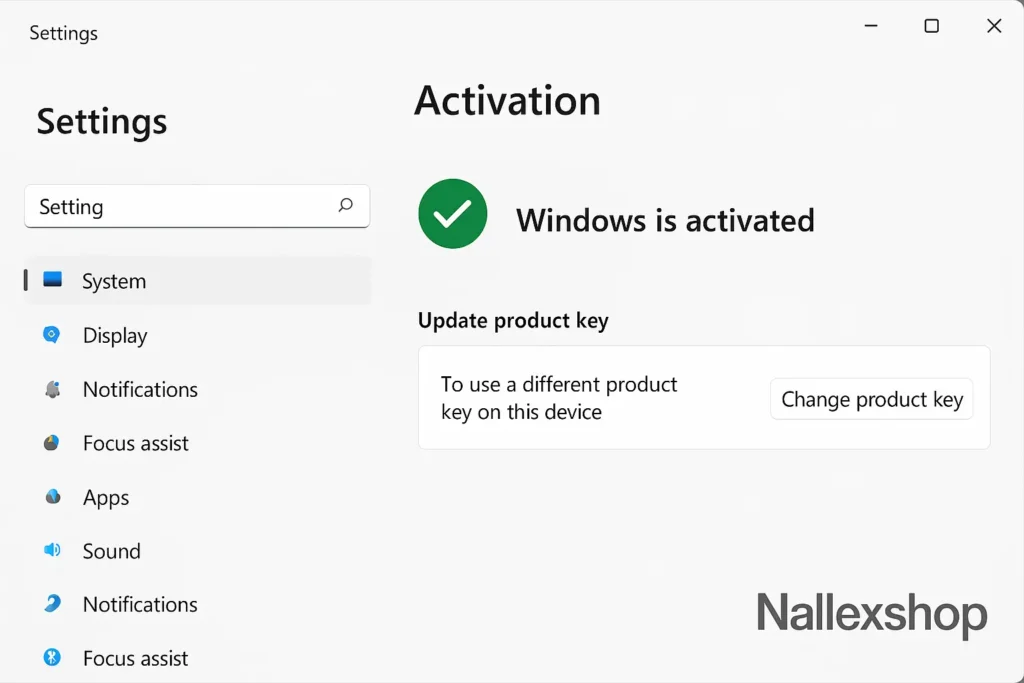
If the key is valid and not in use on another machine, Windows should activate successfully.
4. Fix Windows not activated error using Command Prompt
If activation fails through the Settings app, you can use slmgr commands to install and activate the key manually.
- Open Command Prompt as Administrator.
- Install your key:
slmgr /ipk XXXXX-XXXXX-XXXXX-XXXXX-XXXXX - Then activate Windows:
slmgr /ato
If you get an error code, you can look it up on Microsoft’s support page:
Windows activation troubleshoot help.
5. Link your digital license to a Microsoft account
On Windows 10 and Windows 11, many devices use a digital license that is linked to your Microsoft account. If they are not linked properly, you might see the Windows not activated message.
- Go to Settings → Accounts → Your info.
- Sign in with your Microsoft account if you are not already signed in.
- Then go to Settings → System → Activation and confirm it says:
“Windows is activated with a digital license linked to your Microsoft account.”
6. Check your internet connection and activation servers
Sometimes the error occurs because Windows can’t reach Microsoft’s activation servers. To rule this out:
- Restart your PC and your router.
- Temporarily disable VPNs, proxies or firewalls.
- Try connecting to a different network if possible.
Once the connection is stable, go back to the Activation page and click Activate again.
7. Verify that your license matches your Windows edition
If you try to activate Windows 11 Pro with a Windows 11 Home key, you will always see the Windows is not activated error. Your license must match your installed edition.
Check your edition by going to Settings → System → About and looking under Windows specifications. If you installed the wrong edition, you may need to reinstall Windows or use an edition upgrade key.
8. Fix Windows not activated error after hardware change
Major hardware changes, especially motherboard replacement, can cause Windows to think it’s installed on a new device and deactivate itself.
- Open Settings → System → Activation.
- Click Troubleshoot.
- Select “I changed hardware on this device recently”.
- Sign in with your Microsoft account and select your current PC from the list.
This is the official method recommended by Microsoft to reactivate Windows after a hardware change.
9. Reset activation files (advanced)
If activation files are corrupted, you can reset the Software Protection Platform as an advanced way to fix a persistent Windows not activated error.
net stop sppsvc
cd %windir%\ServiceProfiles\NetworkService\AppData\Roaming\Microsoft\SoftwareProtectionPlatform
rename tokens.dat tokens.old
net start sppsvc
slmgr /ato
Run these commands in an elevated Command Prompt. Afterward, restart your PC and check the activation status again.
10. Buy a genuine Windows key if your license is invalid
If none of the methods above work, your product key might be blocked, expired or not genuine. In that case, the only way to permanently fix the Windows not activated error is to use a valid license.
- 👉 Buy Windows 11 Pro Lifetime License Key – Nallexshop
- 👉 Buy Windows 10 Pro Lifetime License Key – Nallexshop
If you want to double-check your current key before replacing it, you can follow this guide:
How to Check If Your Windows License Is Genuine.
By following these steps, you can reliably fix the Windows not activated error and restore a fully activated, secure Windows installation on your PC.
