
Windows Guides
Reset Windows 11 Safely – Keep Your Files During Reset
Dec
If your PC is slow, buggy, or full of errors, you can reset Windows 11 without losing files by using the built-in “Keep my files” option. This lets you reset Windows 11 safely: your personal documents stay on the drive while Windows reinstalls system files and removes problematic apps and settings.
Why reset Windows 11 instead of reinstalling everything?
Resetting Windows 11 safely is often faster and easier than doing a full clean install. It can fix:
- System crashes and blue screen errors
- Slow performance and freezes
- Corrupted system files or failed updates
- Malware or unwanted software causing issues
Microsoft explains the reset options in more detail here: Recovery options in Windows.
How to reset Windows 11 without losing files (Keep my files)
1. Open Windows Settings
Click the Start button and select Settings, or press Windows + I to open it quickly.
2. Go to System > Recovery
In the left sidebar, click System, then scroll and choose Recovery. This is where you find the reset Windows 11 options.
3. Click “Reset PC”
Under Recovery options, look for Reset this PC and click the Reset PC button.
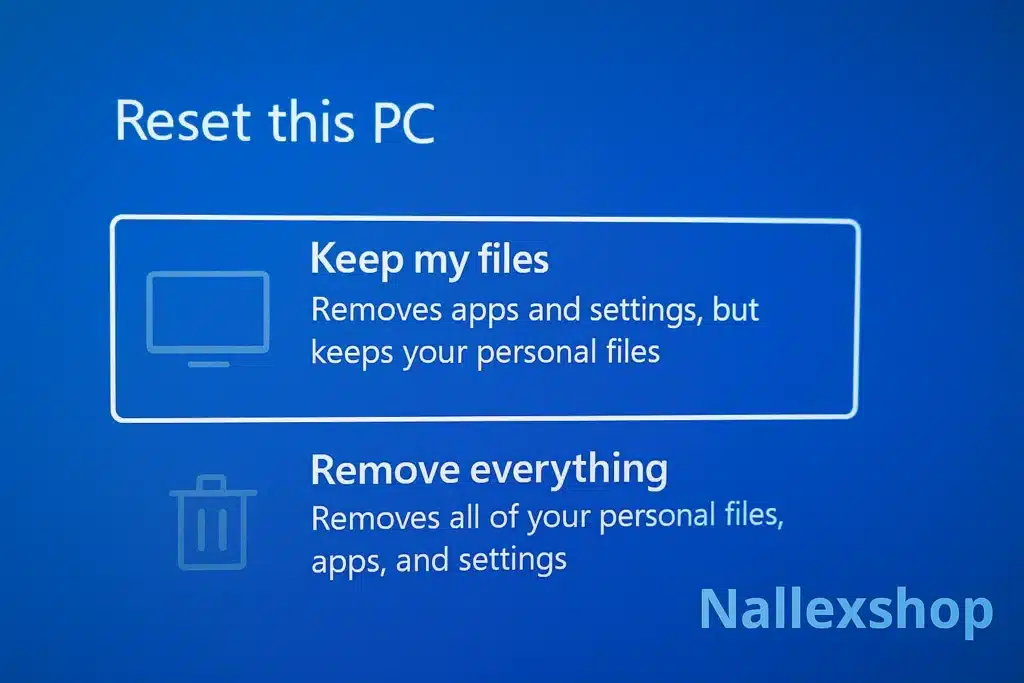
4. Choose “Keep my files”
When asked “How would you like to reinstall Windows?”, pick Keep my files. This is the key to reset Windows 11 without losing your files: it removes apps and settings but keeps your personal folders such as Documents, Pictures and Desktop.
5. Choose Cloud download or Local reinstall
- Cloud download – downloads a fresh copy of Windows 11 from Microsoft’s servers (uses more data but can fix corrupted system files).
- Local reinstall – reinstalls Windows 11 from files already on your device (faster and doesn’t use extra data).
For most serious issues, Cloud download is a safer way to reset Windows 11 safely, especially if your current installation is damaged. You can read more here: Reinstall Windows 11 using Cloud download.
6. Review what will be removed
Windows will show you a summary of what will happen during the reset:
- Apps and programs will be removed.
- Settings will be reset to defaults.
- Your personal files will be kept if you chose Keep my files.
If everything looks correct, click Reset to start the process. Your PC will restart several times and the reset can take 20–45 minutes depending on hardware speed.
What you keep and what you lose when you reset Windows 11 safely
You keep:
- Personal files in your user folders (Documents, Desktop, Pictures, etc.).
- Your Microsoft account and Windows activation, as long as it was genuine.
You lose:
- Installed desktop programs and apps (you’ll need to reinstall them).
- Custom system settings, tweaks and some drivers.
- Preinstalled bloatware from manufacturers, if you choose the right options.
If you need a valid key to keep Windows activated after the reset, you can use one of our genuine licenses:
- 👉 Windows 11 Pro Lifetime License Key – Nallexshop
- 👉 Windows 10 Pro Lifetime License Key – Nallexshop
Troubleshooting: what if the reset Windows 11 process fails?
Sometimes the reset process fails with an error message like “There was a problem resetting your PC”. If this happens, try these steps before you attempt another reset:
- Run System File Checker:
sfc /scannow - Repair system files with DISM:
DISM /Online /Cleanup-Image /RestoreHealth - Make sure you have enough free disk space.
- Temporarily disable third-party antivirus software.
If activation problems appear after the reset, you can follow this guide: How to Fix “Windows Is Not Activated” Error.
Alternative: create a backup before you reset Windows 11
Even though the “Keep my files” option is designed to reset Windows 11 safely, it’s always smart to create a backup before making big system changes.
- Copy important files to an external drive or USB stick.
- Use OneDrive or another cloud backup service.
- Create a full system image if you want an extra layer of protection.
Conclusion: when should you reset Windows 11 without losing files?
Use the reset Windows 11 without losing files method when your PC is unstable, too slow or full of software issues, but your personal documents are still important. The “Keep my files” reset gives you a fresh Windows installation while preserving your data, and it is often the fastest way to get your system back to normal.
For more Windows 11 tips, you can also read our guide: Windows 11 System Requirements Explained for Beginners.
